
QUICK START
Five minutes to your first markup.
Seven steps, the same on Mac, iPad and iPhone. Where the wording differs, both are given.
Open a drawing
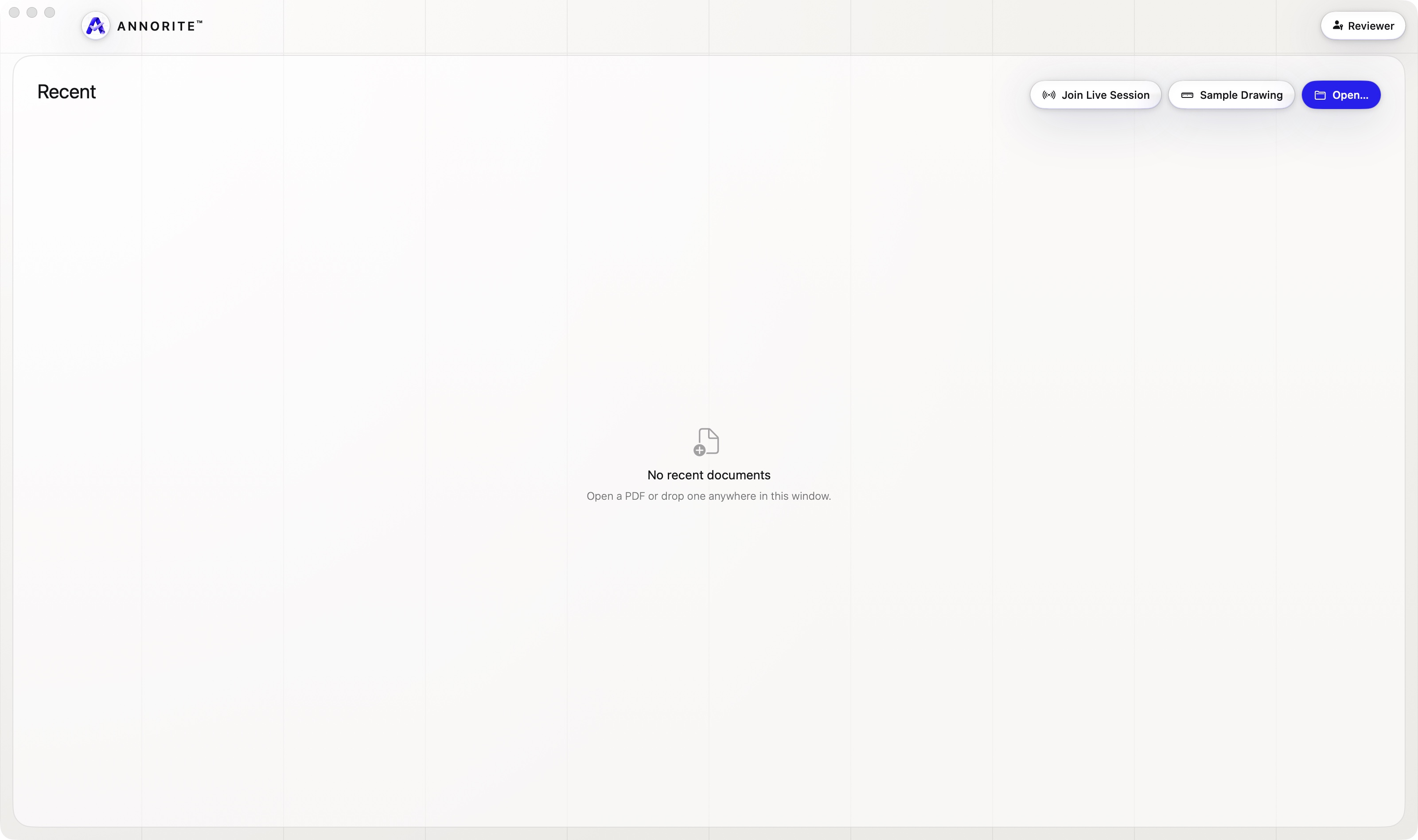
Mac: press ⌘O, or drop a PDF anywhere on the window. iPad and iPhone: tap Open… and choose a PDF from Files.
Nothing to hand? Choose Sample Drawing on the start screen. It opens a six-sheet interior set, already at the right scale.
Find your way round
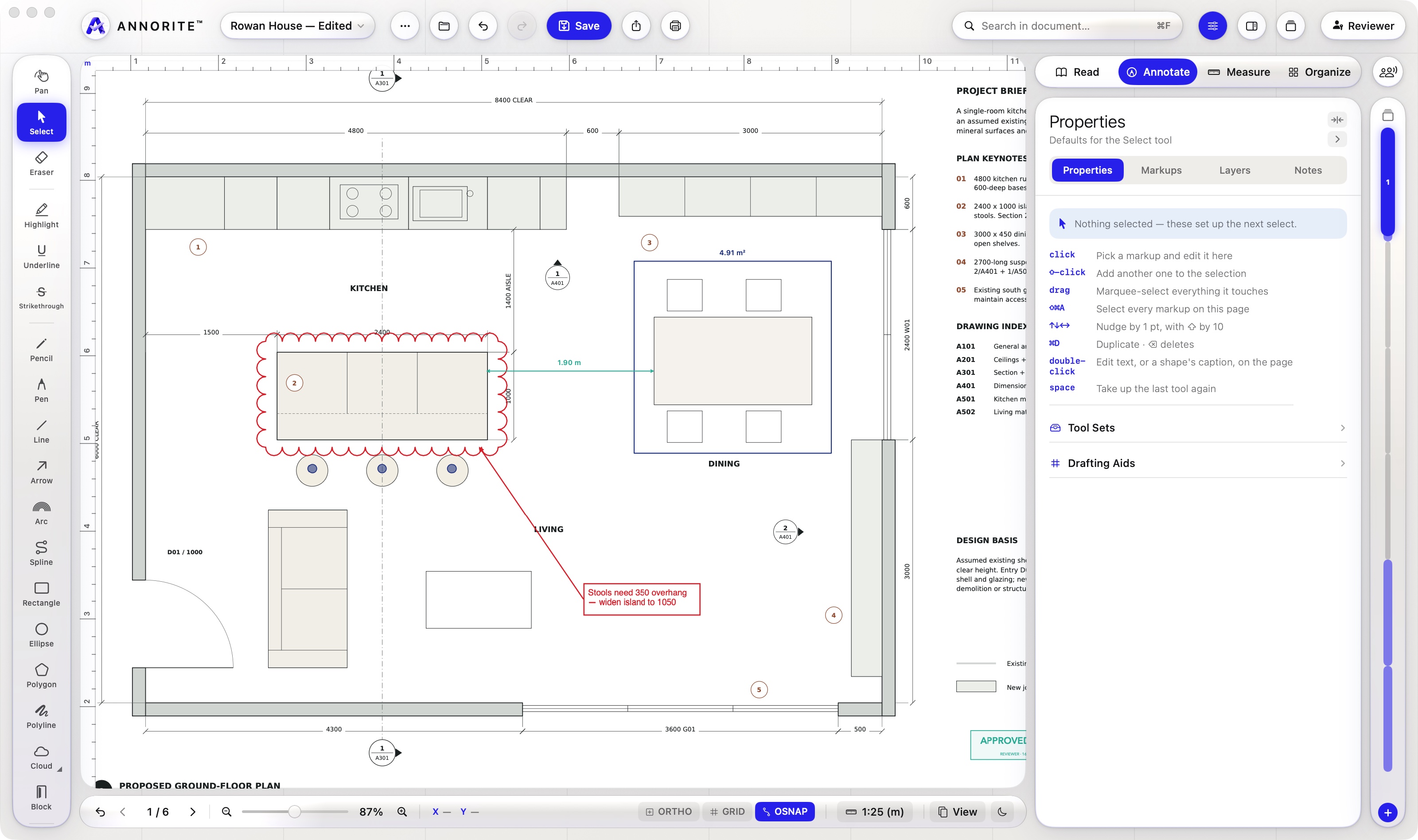
Tools are on the left, the sheet in the middle, the inspector on the right, and the status line underneath. The tabs at the top right switch between Read, Annotate, Measure and Organize.
Scroll to move the sheet and pinch to zoom. On iPad and iPhone, two fingers always move the sheet and one finger uses the tool.
Mark something up
Choose Annotate, pick Cloud from the tool rail (C on a Mac) and drag round the detail. Then pick Callout (Q), drag from the detail to where the text should sit, and type.
The strip under the header sets colour and line weight. Each tool remembers its own.
Set the scale, then measure
Choose Measure. Click the scale on the status line and pick the drawing’s scale. If you aren’t sure of it, pick Calibrate, drag along a dimension printed on the drawing, and type its real length.
Now Length (M) measures between two points, Area (G) traces an outline and Count (N) counts items.
Review what you’ve done
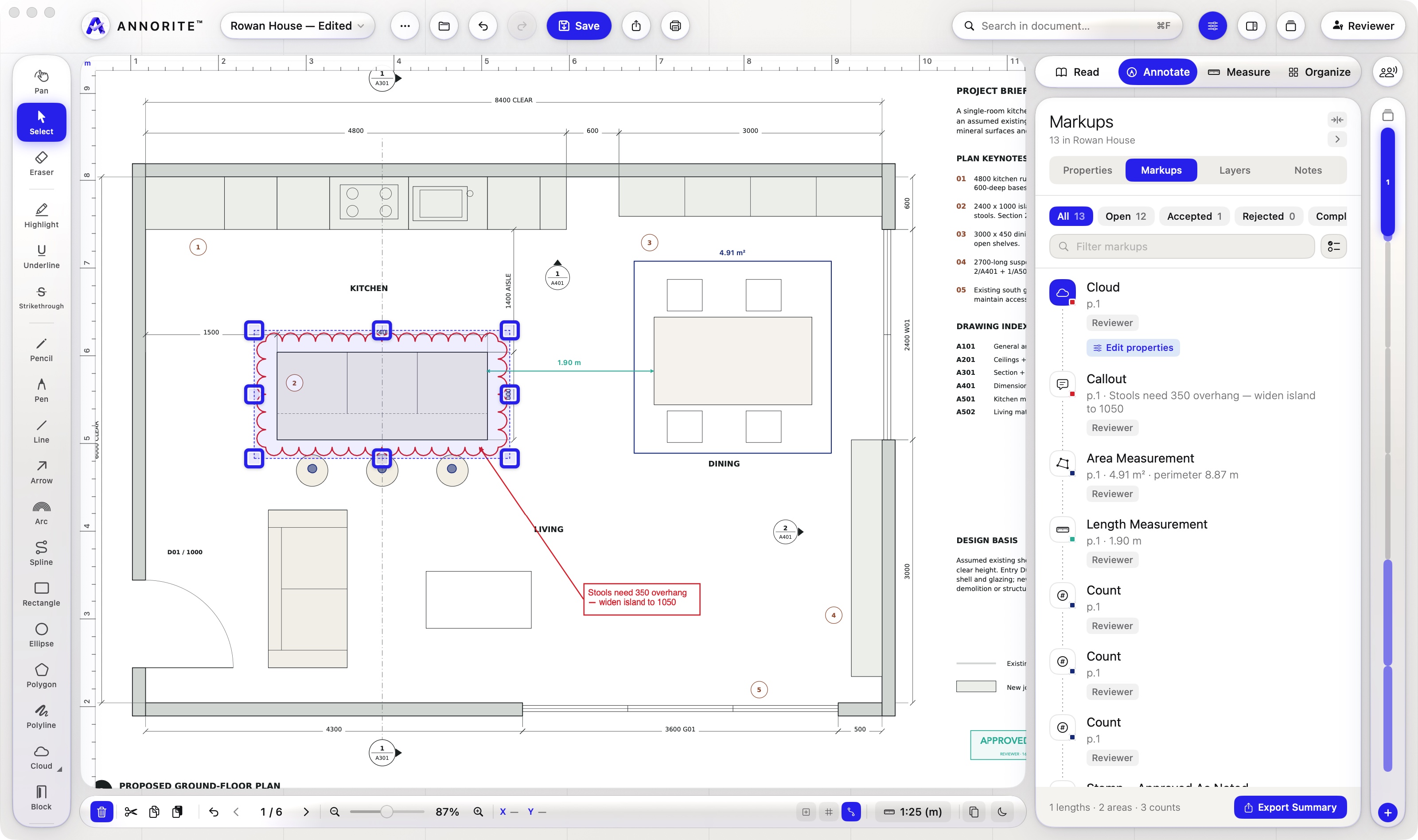
Open the Markups tab in the inspector. Every markup is listed with its page, measurement and comment. Click one to go to it. Select a markup and set its status (Open, Accepted, Rejected, Completed) in Properties.
Save
Press ⌘S, or tap Save. Your markups go into the PDF as standard annotations, so the file opens in any PDF reader with the markups in place.
Send it on
The Share button sends the PDF as it is, or a flattened copy with the markups burned in so nobody can move them. Export Summary at the foot of the Markups tab writes a report of every markup with its picture, comment and status.
Where next
- The full guide: every tool, layers, pages, comparing drawings, working together and shortcuts.
- The feature list.
- Support, or email [email protected].
Always check critical dimensions against the project documents. A measurement depends on the drawing and on the scale you set.